
How to Install and Configure Cursor AI Code Editor for Maximum Productivity
Cursor is a fork of VS Code built entirely around AI-assisted coding. Because it supports your existing VS Code extensions, keyboard shortcuts, and themes, the transition is seamless. Setting it up correctly ensures that the AI can read your entire codebase and answer questions contextually.
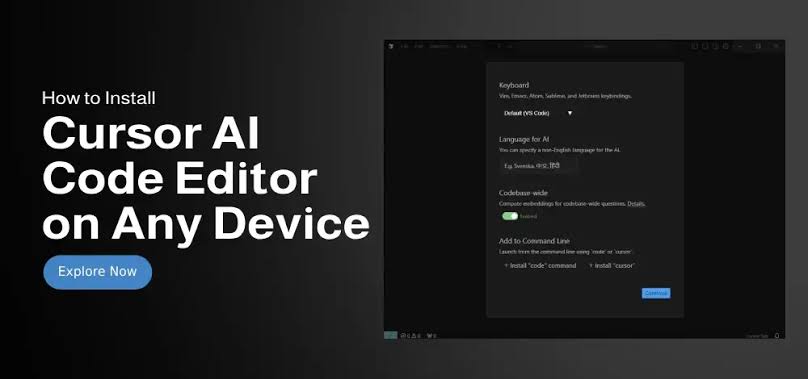
Initial Setup Steps
To configure your workspace for peak performance:
- Import Settings: During installation, select the option to import all VS Code settings, extensions, and configurations.
- Enable Codebase Indexing: Go to Settings > Features > Codebase Indexing. Ensure it is active. This allows you to use
@Codebasein your prompts, letting the AI search every file in your project. - Set Up your API Key: If you have custom models or want to use your own Claude or OpenAI API keys, insert them under the Models tab.
